How to enable transcription in Teams
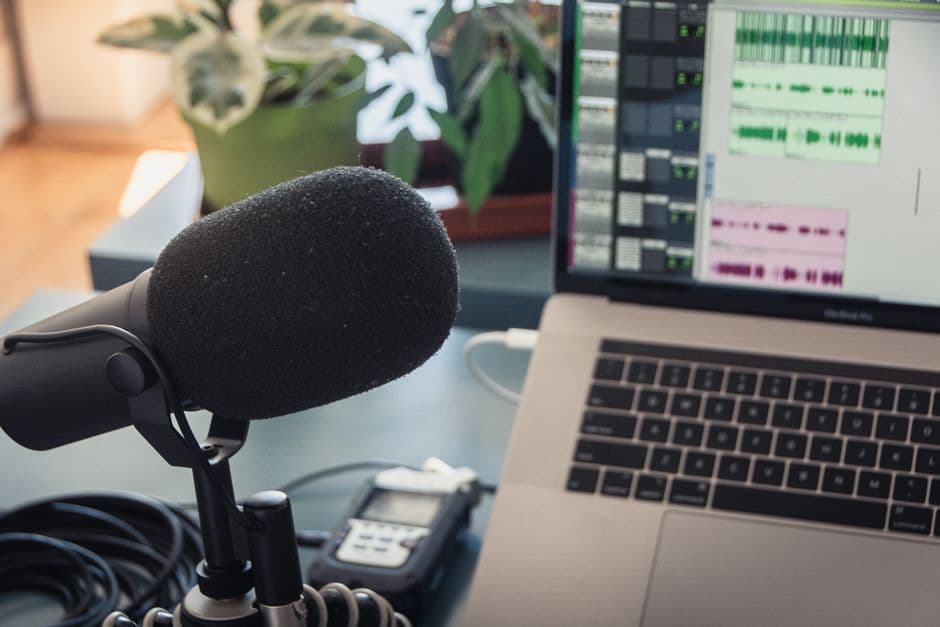
Microsoft Teams transcription captures every word spoken during a meeting and saves the output as .docx or .vtt files in OneDrive or SharePoint. Activating it requires an admin to enable the Allow transcription policy in the Teams Admin Center, after which any organizer can start the live feed from the meeting controls.
For sensitive or high-stakes content, native accuracy may not be sufficient. Tools such as VOOK.AI deliver 98% accuracy with European data hosting, making them a stronger option for legal, medical, or confidential documentation.
Over 60% of professionals report losing track of key decisions due to incomplete note-taking during virtual sessions. A single missed detail in a high-stakes discussion can cause project delays or misaligned objectives.
This guide explains exactly how to turn on transcription in Teams, from admin policy setup to live activation and post-meeting file management. It also covers when native tools fall short and a more secure, accurate alternative becomes necessary.
Activating Live Transcription in Microsoft Teams Meetings
Teams transcription requires admin activation and organizer roles. Live text displays in real-time, stores in OneDrive/SharePoint as .docx or .vtt files, and achieves native accuracy levels suitable for basic meeting logs and internal documentation.
Start by accessing the meeting controls to trigger the live feed, which is the first step for any organizer.
Immediate Steps to Start and Stop Transcription
Locate the "More actions" button. Select "Record and transcribe" to find the start button. This initiates the live capture process immediately.
Participants receive an instant notification. You must confirm the spoken language for the engine to function, so be sure to check the official Microsoft Teams support guide for specific configuration details.
End sessions manually via the menu. Alternatively, transcription stops automatically when everyone leaves.
Adjusting Spoken Language for Real-Time Accuracy
Open the transcript pane settings. You must select the language currently being spoken. This ensures the text remains accurate and readable.
Confirming the change updates the feed. This simple step prevents recognition errors during multilingual discussions. It maintains the integrity of your professional documentation.
Captions are temporary visual aids. Transcripts are saved permanently. You can access these files later for deep analysis.
Administrative Prerequisites and Permission Controls
Getting the buttons to appear requires more than just meeting rights; it starts with the IT department's configuration.
Enabling Policies via the Teams Admin Center
Admins must navigate to Meeting Policies in the Admin Center. They need to toggle the "Allow transcription" setting to "On". This is the foundation for all users; you can consult the official documentation for enabling transcribing on Microsoft Teams.
Policies can be assigned to specific departments or individuals. This controls who has the power to record sensitive data within the company.
Review compliance settings for data retention. This ensures records are kept according to legal or internal ecosystem rules.
Troubleshooting Missing or Greyed Out Options
Check participant roles first. Only organizers and presenters can usually start the process. External guests are often restricted by default.
Verify OneDrive and SharePoint storage availability. If the storage is full, the transcript file cannot be saved or initiated.
Update the Teams desktop app to the latest version. Older versions often lack support for live features or language updates.
Common causes for missing options:
Lack of admin permission. Guest status. Full storage. Outdated software.
While Teams provides basic utility, professionals handling sensitive interviews often require higher standards. VOOK.AI delivers 98% accuracy and European data sovereignty. This ensures your legal or medical transcripts remain secure and instantly exploitable via integrated AI analysis.
Accessing and Exporting Post-Meeting Documentation
Once the meeting concludes, the focus shifts from live capture to managing the resulting text files.
Locating and Downloading Files After the Call
Open the meeting event in the Teams calendar. Look for the "Recording & Transcripts" tab to find all generated files. This central hub hosts every record created.
Select formats like .docx for editing or .vtt for captions. Local storage allows for offline review and professional formatting. These files ensure your data remains accessible for long-term use.
Share the link in the meeting chat. This helps mobile users who might struggle to find the calendar tab easily, and you can get a transcript of a video for professional use to achieve better results.
Privacy Controls for Viewing and Sharing Records
Organizers manage download and deletion rights. Co-organizers can also be granted these permissions to help with administrative tasks. This hierarchy maintains strict control over sensitive corporate information.
Use the "Recap" tab to audit file access. Seeing who viewed the transcript maintains security for internal corporate discussions. Monitoring these interactions prevents unauthorized distribution of your intellectual property.
Apply sensitivity labels for confidential data. This is vital for medical or legal records handled within the Teams environment. Protecting high-stakes information requires these proactive security measures.
The table below summarizes access rights by role:
Organizer: View Access — Yes | Download Rights — Yes | Delete Rights — Yes
Co-organizer: View Access — Yes | Download Rights — Yes | Delete Rights — Yes
Attendee: View Access — Yes | Download Rights — No | Delete Rights — No
External Guest: View Access — No | Download Rights — No | Delete Rights — No
Advanced Transcription Workflows for Sensitive Data
While native tools work for general calls, high-stakes professional environments often require a more robust, secure approach.
Moving Beyond Native Tools for 98% Accuracy
Standard tools often struggle with technical jargon or heavy accents. Academic and legal professionals need higher precision for their qualitative research or case files. Inaccurate logs create costly strategic misunderstandings.
VOOK.AI delivers 98% accuracy. Advanced speaker identification and noise filtering ensure every word is captured correctly for professional use, allowing you to transcribe audio to text with 98% precision for demanding tasks.
Integrate these transcripts into AI workflows. Use the LLM chat to extract summaries and insights from your discussions. This transforms raw audio into actionable intelligence instantly.
Guaranteeing Data Sovereignty with European Hosting
European hosting is a major security benefit. It ensures data sovereignty and compliance with strict local privacy regulations for sensitive audio. Your intellectual property remains protected under regional standards.
VOOK.AI uses encryption at rest. This protects transcripts for healthcare providers and consultants who handle private client information daily. Data is never used to train public algorithms.
Move from basic logs to secure databases. Searchable text remains under your control, creating a reliable archive for long-term organizational knowledge. Consult our professional guide to secure AI audio transcription to master your data governance.
FAQ
To start live transcription, click More actions in the meeting controls, select Record and transcribe, then click Start transcription. You must confirm the spoken language so the engine can produce accurate, readable text.
All participants instantly receive a notification that the session is being transcribed. The transcript is saved automatically as a .docx or .vtt file in OneDrive or SharePoint once the meeting ends.
Meeting organizers and co-organizers have full control, including the ability to start, stop, download, and delete transcript files. Attendees from the same organization can view the transcript but typically cannot download it.
External guests face the strictest limitations and cannot initiate or download transcripts by default. Organizers can adjust these permissions through the Meeting Options menu to protect sensitive information.
The most common cause is that an IT administrator has not yet enabled the Allow transcription toggle in the Teams Admin Center under Meeting Policies. Without this setting, the option remains unavailable regardless of your meeting role.
Other frequent causes include full OneDrive or SharePoint storage, an outdated Teams desktop application, or joining the meeting as an anonymous or external guest. Resolving any of these issues should restore access to the transcription feature.
Transcripts are stored in the organizer's OneDrive for Business and are linked directly to the meeting's chat and Recap tab, making them accessible for review immediately after the call ends.
To permanently remove a transcript, the organizer must open the Recap section of the past meeting and select the Delete option. This action is final and helps ensure confidential discussions are purged in line with your company's data retention policy.
About the author
